How to Schedule a Message on WhatsApp: The Complete 2026 Guide
You’ve probably opened WhatsApp to send a “Happy Birthday” message, only to realize it’s 3 AM and the other person is asleep. Or maybe you run a business and need a payment reminder to go out at 9 AM sharp, every single time, without you having to sit at your desk and hit send.
Either way, you’re in the right place. Scheduling WhatsApp messages — whether it’s a personal reminder, a birthday wish, or a business follow-up — saves time and keeps your communication consistent. In this guide, we’ll walk through every method that actually works to schedule a message on WhatsApp in 2026, including what’s changing with WhatsApp’s own native scheduler, and how businesses can move beyond one-off scheduling with the WhatsApp Business API.
Does WhatsApp Have a Native Message Scheduler? (2026 Update)
Here’s the short answer: not yet, for most people.
WhatsApp has been testing a built-in “Scheduled Messages” feature since early 2026. It was first spotted in beta builds for Android and iOS back in February, and it’s already live for some users in select regions, including Canada. But as of mid-2026, it still hasn’t rolled out broadly. If you open a chat and look for a “schedule send” option next to the send button, chances are it isn’t there yet on your phone.
There’s also a common myth worth clearing up. WhatsApp Business’s Away Message and Greeting Message features are often mistaken for scheduling tools. They’re not. Away and Greeting messages are reactive — they fire automatically when someone messages you first, not at a time you choose in advance. True scheduling means you write a message today and it goes out on its own next Tuesday at 9 AM, whether or not anyone has messaged you.
So until WhatsApp’s native scheduler reaches everyone, here’s what actually works right now — for personal use and for business.
Personal vs Business Scheduling: Which Method Do You Actually Need?
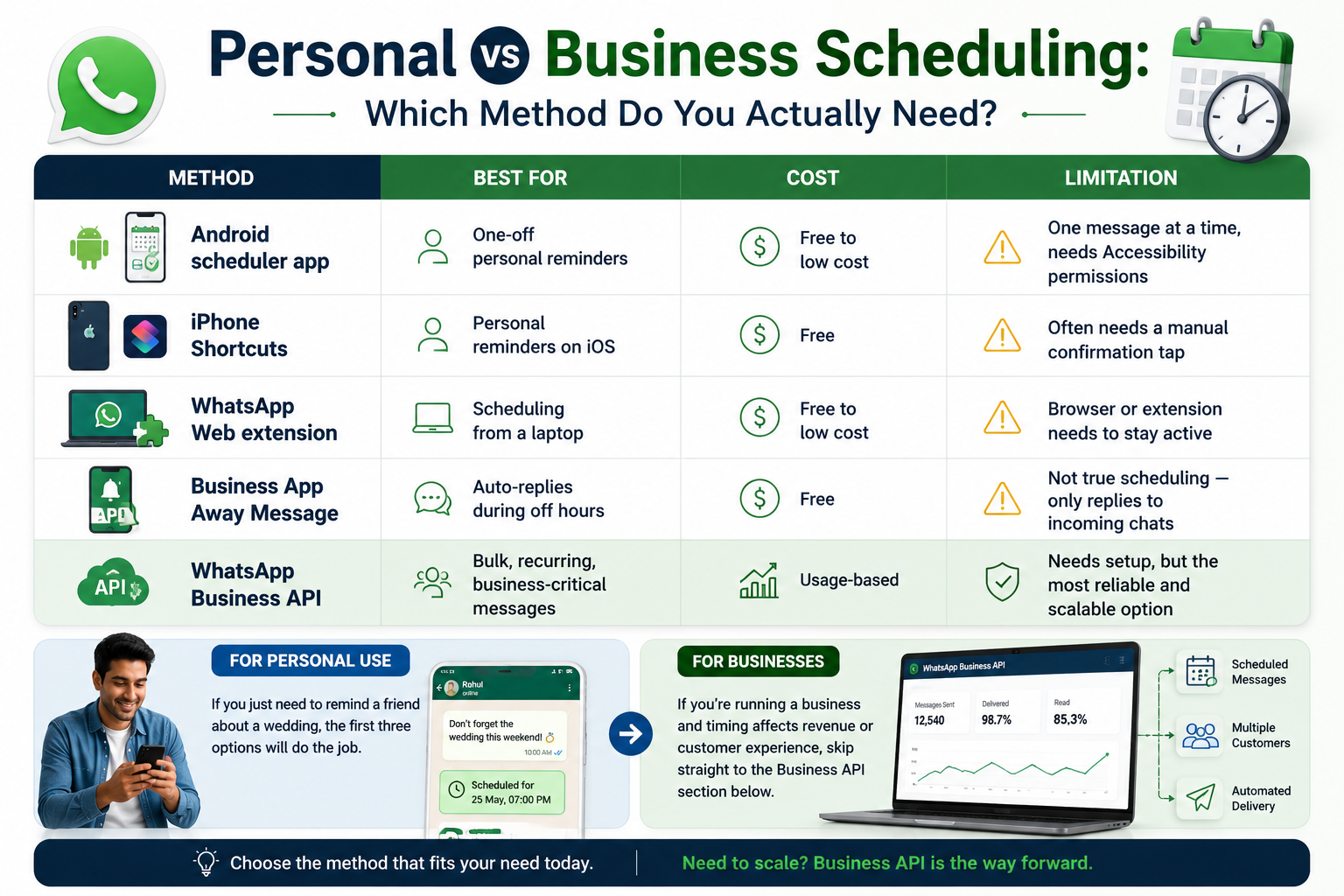
| Method | Best For | Cost | Limitation |
|---|---|---|---|
| Android scheduler app | One-off personal reminders | Free to low cost | One message at a time, needs Accessibility permissions |
| iPhone Shortcuts | Personal reminders on iOS | Free | Often needs a manual confirmation tap |
| WhatsApp Web extension | Scheduling from a laptop | Free to low cost | Browser or extension needs to stay active |
| Business App Away Message | Auto-replies during off hours | Free | Not true scheduling — only replies to incoming chats |
| WhatsApp Business API | Bulk, recurring, business-critical messages | Usage-based | Needs setup, but the most reliable and scalable option |
If you just need to remind a friend about a wedding, the first three options will do the job. If you’re running a business and timing affects revenue or customer experience, skip straight to the Business API section below.
How to Schedule a WhatsApp Message on Android
- Install a WhatsApp message scheduler app from the Google Play Store — look for one with high ratings and recent updates.
- Open the app and grant it Accessibility permissions. This is what lets it “tap send” on your behalf at the right time. Go to Settings → Accessibility → Services and turn it on there.
- Tap the “+” icon inside the app.
- Choose the WhatsApp contact or group you want to message.
- Pick the date and time you want the message delivered.
- Type your message.
- Tap “Create” or “Schedule” to save it.
Most of these apps only let you queue one message per exact time slot, so plan your spacing if you’re setting up several reminders at once.
Permissions to Watch Out For
Before installing any scheduler app, pause for a second. These apps need Accessibility access to work, which is a fairly deep level of permission — it lets the app see and interact with what’s on your screen. That’s not automatically dangerous, but it does mean you should stick to apps from reputable developers with a large number of reviews, and avoid anything that asks for permissions beyond what scheduling actually needs, like full contacts access or SMS access without a clear reason.
How to Schedule a WhatsApp Message on iPhone
WhatsApp scheduling on iPhone works a little differently, since iOS doesn’t give apps the same background access Android does. Apple’s own Shortcuts app fills that gap:
- Download the Shortcuts app from the App Store if you don’t already have it.
- Open Shortcuts and tap the Automation tab.
- Tap the “+” icon and select “Create Personal Automation.”
- Choose “Time of Day,” set your preferred date and time, then tap Next.
- Tap “Add Action” and search for “Text.” Select it.
- Type the message you want to send.
- Tap the “+” again, search for “WhatsApp,” and choose “Send Message via WhatsApp.”
- Pick the contact, then tap Next and Done.
Known iOS Limitations
On some iOS versions, the automation will prompt you to confirm before it actually sends, meaning your phone needs to be unlocked and you may need to tap “Run” when the notification appears. It isn’t always fully hands-off the way Android scheduler apps are. If you’re relying on this for something time-sensitive, test it once before the day that actually matters.
How to Schedule a WhatsApp Message on WhatsApp Web
If you spend most of your day on a laptop, scheduling from WhatsApp Web with a browser extension is often the easiest route:
- Install a WhatsApp scheduling extension from the Chrome Web Store.
- Open web.whatsapp.com and log in by scanning the QR code.
- Open the chat you want to message.
- Look for a small clock or calendar icon near the message box, and click it.
- Type your message in the scheduler window that opens.
- Choose the date and time.
- Click “Schedule.”
A Privacy Consideration Worth Knowing
Browser extensions need access to read and interact with your WhatsApp Web page to work, which means they technically have visibility into your chat window. Stick to extensions with a solid number of installs and recent reviews, and check exactly what permissions they’re asking for in the Chrome Web Store listing before adding them. If a scheduler extension wants access to every website you visit, that’s a red flag — it shouldn’t need that much.
How to Set Up an Away Message on WhatsApp Business App
- Open the WhatsApp Business app.
- Tap Settings, then Business Tools.
- Select Away Message.
- Turn on the “Send Away Message” toggle.
- Type the message you want sent automatically.
- Under Recipients, choose who should receive it — everyone, or only specific contacts.
- Tap Schedule and set the hours you want this to run, such as your off-hours.
Remember: this only replies to people who message you first. It won’t send a message on its own to someone who hasn’t reached out. For that, you need either the native scheduler, once it’s available to you, or the WhatsApp Business API.
Common Mistakes People Make When Scheduling WhatsApp Messages
- Granting more app permissions than needed. Just because an app works doesn’t mean every permission it asks for is necessary.
- Ignoring time zones. A message scheduled for “9 AM” sends at your device’s local time, not the recipient’s. Double-check this if you’re messaging someone in a different city or country.
- Not testing the message first. Typos and broken links don’t get a second chance once a message is queued and sent automatically.
- Manually sending the same message to a large list. Beyond a handful of contacts, this starts looking and feeling like spam, and it can get your number reported.
- Forgetting WhatsApp’s policies. Unsolicited promotional content sent without consent can lead to your number being limited or banned, personal or business.
Why Businesses Outgrow Manual Scheduling Apps
These methods work fine for a handful of personal reminders. But the moment you’re running a business — sending appointment reminders, order updates, or follow-ups to hundreds or thousands of customers — manual apps and extensions start to break down:
- No analytics. You can’t see open rates, response rates, or which messages actually worked.
- Ban risk. Using a personal WhatsApp number for bulk outreach goes against WhatsApp’s terms and can get the number blocked.
- No CRM connection. You can’t trigger a message automatically when someone places an order or books an appointment.
- No template compliance. WhatsApp requires pre-approved templates for certain business message types, and manual apps simply don’t handle that.
- No real scale. Scheduling fifty individual messages by hand isn’t scheduling — it’s a part-time job.
This is exactly the gap the WhatsApp Business API was built to close.
How to Schedule WhatsApp Messages at Scale with the WhatsApp Business API
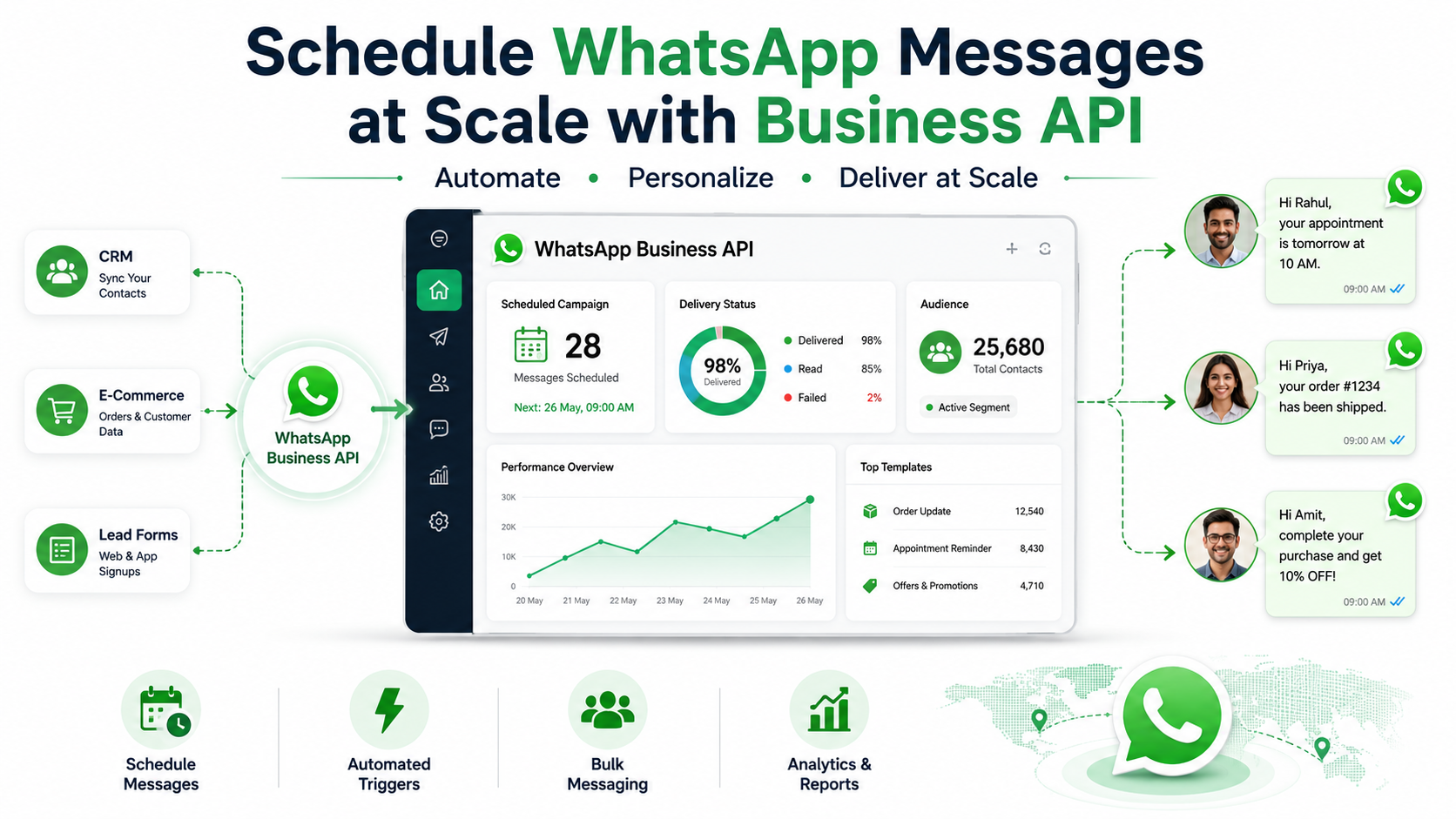
What Is the WhatsApp Business API
The WhatsApp Business API is Meta’s official infrastructure for businesses that need to send messages at scale, integrate WhatsApp into their existing systems, and automate conversations reliably. Unlike the regular WhatsApp Business app, it doesn’t come with a built-in chat interface by default — it’s designed to plug into your CRM, e-commerce platform, or a dedicated messaging dashboard. If you want a deeper breakdown of how it actually works, we’ve covered that in detail in our guide on what the WhatsApp API is and how it works.
How Template-Based Scheduling Works
Scheduling through the API works differently from scheduling a personal message. Instead of free-text messages, businesses use pre-approved message templates — categorized as marketing, utility, or authentication — that Meta reviews before they can be sent. Once a template is approved, you can:
- Set a specific send date and time for a single message or an entire batch.
- Trigger a message automatically based on a customer action, such as an order being placed, a form being filled, or an appointment being booked.
- Personalize each message with variables like the customer’s name, order number, or appointment time, even when sending to thousands of people at once.
Step-by-Step: Scheduling Messages Through a Business API Dashboard
- Log in to your WhatsApp Business API dashboard.
- Select or create a message template, and wait for Meta’s approval if it’s a new one.
- Choose your audience — upload a contact list, sync from your CRM, or select a saved segment.
- Personalize the message with variables such as name, date, or order details.
- Set the date and time for delivery, or link it to a trigger event.
- Send a test message to confirm everything looks right.
- Confirm and schedule. The platform queues and sends the message automatically, even if you’re offline.
Real Business Use Cases for Scheduled WhatsApp Messages
- Appointment reminders — Clinics, salons, and consultants schedule reminders 24 hours before a booking to cut down on no-shows.
- Cart recovery — E-commerce stores schedule a nudge a few hours after someone abandons a cart, often with a small incentive to complete the purchase.
- Welcome and onboarding sequences — New customers or sign-ups receive a scheduled welcome message, followed by a few onboarding tips over the next few days.
- Order and shipping updates — Scheduled or trigger-based messages go out when an order is placed, shipped, and delivered.
- Feedback requests — A follow-up message a day or two after a purchase or service, asking for a quick review.
- Event and webinar reminders — Scheduled reminders the day before and an hour before an event starts.
- Festival and seasonal greetings — Scheduled batches of greetings timed for festivals, sales, or company milestones.
Best Practices for Scheduled Messages That Actually Get Read
- Personalize beyond the name. Reference what the customer actually did — their order, their last visit, their interest.
- Respect time zones. Schedule delivery based on the recipient’s local time, not yours, especially if you serve customers across India, the USA, UK, UAE, Australia, Canada, and Singapore.
- Stick to approved templates. This keeps you compliant and avoids delivery issues.
- Test your send times. What works for one audience segment might not work for another. Review delivery and read rates, then adjust.
- Don’t over-message. Give every scheduled message a clear reason to exist, and always make it easy for people to opt out.
- Segment your audience. A single broadcast to your entire list rarely performs as well as smaller, relevant segments.
How DGAS Skyworld Helps You Schedule and Automate WhatsApp Messages
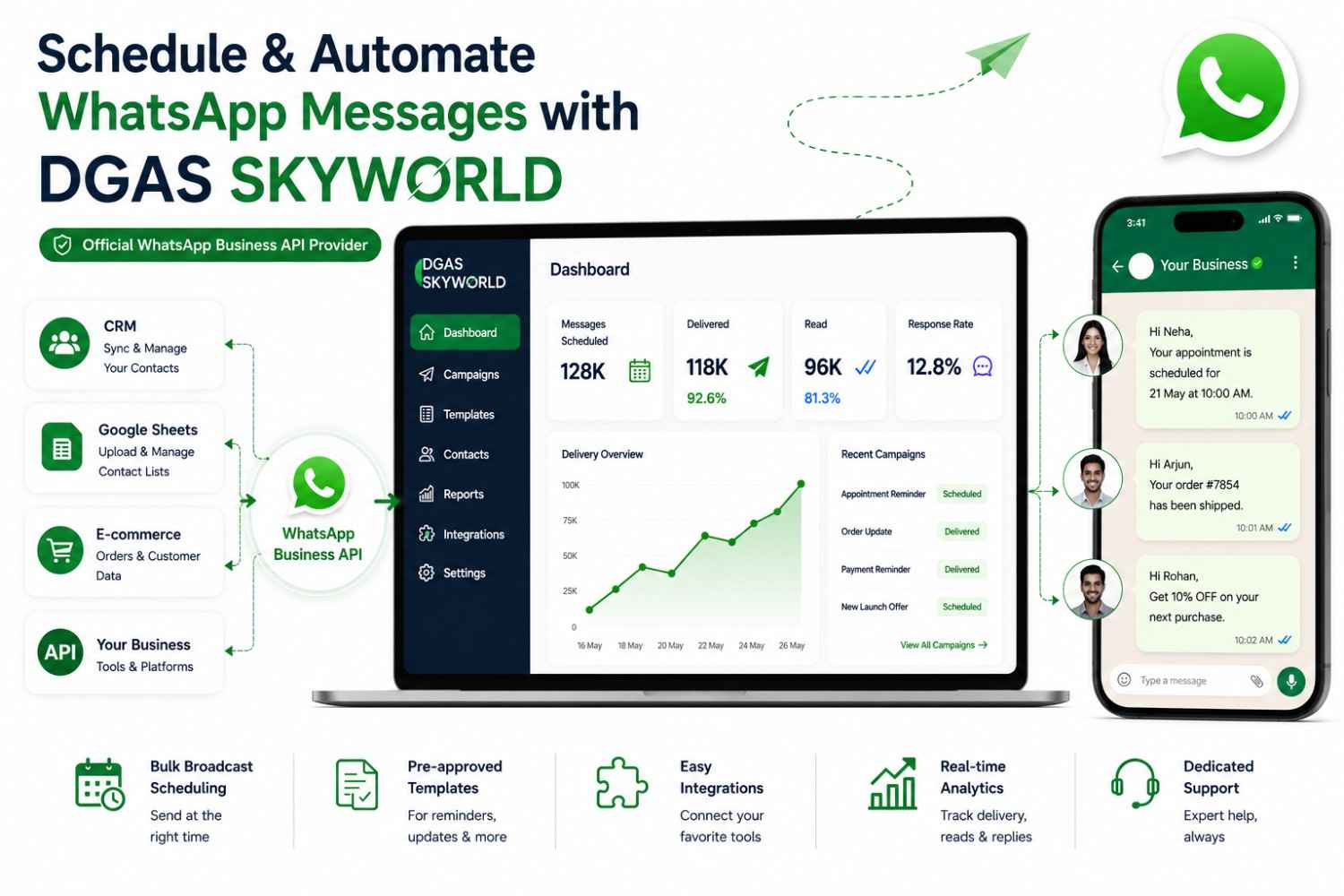
If you’ve read this far, you already know personal scheduling apps and Away messages can only take you so far. For businesses that want to schedule and automate WhatsApp communication reliably, without chasing third-party apps or worrying about permissions and ban risk, DGAS Skyworld provides direct, official WhatsApp Business API access.
As an official WhatsApp Business API provider — not a reseller and not a layered BSP — DGAS Skyworld gives you:
- Bulk broadcast scheduling for hundreds or thousands of contacts at once
- A ready library of pre-approved message templates for reminders, updates, and promotions
- Integration with your CRM, Google Sheets, or existing business tools
- A dashboard to track delivery, read rates, and customer responses
- Dedicated support to help you set up and run campaigns across India, USA, UK, UAE, Australia, Canada, and Singapore
Whether you’re a clinic that needs appointment reminders, a real estate brand following up with leads, or an e-commerce store recovering abandoned carts, DGAS Skyworld helps you turn WhatsApp scheduling from a manual chore into a dependable, automated system.
Book a free demo with DGAS Skyworld to see how scheduled and automated WhatsApp messaging can work for your business.
FAQs About Scheduling WhatsApp Messages
1. Can you schedule a message on WhatsApp natively yet?
Not for most users. WhatsApp has been testing a native Scheduled Messages feature since February 2026, with limited rollout in select regions. For now, most people still need a third-party app, Shortcuts, or the Business API to schedule messages.
2. How do I schedule a WhatsApp message on Android without an app?
Right now, there isn’t a way to do this purely within WhatsApp on Android. You’ll need a dedicated scheduler app, since WhatsApp’s own native scheduler isn’t widely available yet.
3. Is it safe to use third-party WhatsApp scheduler apps?
Generally yes, if you stick to well-reviewed, regularly updated apps and pay attention to the permissions they request. Be cautious of any app that asks for access well beyond what scheduling needs, like full contacts or SMS access.
4. Can I schedule WhatsApp messages on iPhone without Shortcuts?
Not at the moment. Apple’s Shortcuts app remains the most reliable workaround for scheduling WhatsApp messages on iOS until WhatsApp’s native scheduler is fully rolled out.
5. Can I schedule bulk WhatsApp messages for my business?
Yes, but not through personal scheduler apps — those are built for one-to-one messages. For bulk, scheduled, and personalized messaging at scale, you need the WhatsApp Business API.
6. What happens if my phone is off when a scheduled message is due?
With Android scheduler apps and iPhone Shortcuts, your message may be delayed or fail to send if your phone is off or disconnected at the scheduled time. Messages scheduled through the WhatsApp Business API are queued and sent server-side, so they go out on time regardless of your device status.
7. Can a scheduled WhatsApp message be edited or cancelled?
On most scheduler apps and extensions, yes — you can open the app before the scheduled time and edit or delete the message. Through the Business API, you can typically cancel or pause a scheduled campaign from the dashboard before it goes out.
8. Does the WhatsApp Business App support broadcast scheduling?
No. The WhatsApp Business app lets you send a broadcast to up to 256 contacts, but only immediately — there’s no option to schedule a broadcast for a future date and time. That capability is only available through the WhatsApp Business API.
Key Takeaways
- WhatsApp doesn’t have a fully rolled-out native scheduler yet, though one is in testing for 2026.
- For personal use, Android scheduler apps, iPhone Shortcuts, and WhatsApp Web extensions all work as reliable workarounds.
- The WhatsApp Business App’s Away Message automates replies, not outbound scheduling.
- For businesses, the WhatsApp Business API is the only reliable way to schedule, personalize, and scale messages without ban risk.
- DGAS Skyworld gives you direct, official access to the WhatsApp Business API, so scheduling stops being a manual workaround and becomes part of how your business runs.